To start FliteStar, do one of the following:
Click Start > Programs > Jeppesen > FliteStar > FliteStar.
Click the FliteStar icon on your desktop.
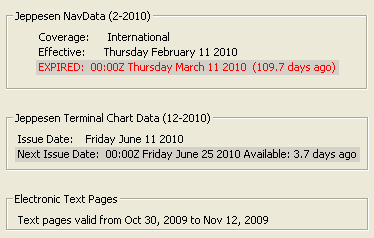
Each time FliteStar opens, it displays a warning with the effective date of your Electronic Chart Data, and, if you have JeppView 3, the issue date of your terminal chart data and the cycle number of your Electronic Text Pages. Please read it and check the dates carefully.
If you select the Don't show this warning again check box, the warning message will not appear as long as the data is current. When the data goes beyond the effective or recommended dates, the warning message appears regardless of selecting the Don't show this warning again check box. If the data is not current, the Don't show this warning again check box is unavailable.
When the data becomes obsolete, the fonts in the notification change color:
For the NavData cycle, red signifies that the data cycle has expired and an update is needed to ensure safety of flight.
For the terminal chart cycle (JeppView 3 users), a gray background signifies that updated terminal charts are available. At this time, you should receive an update in the mail or retrieve an update through the Internet.
You are responsible for the accuracy of your flight plans and navigation information, as well as the currency of your data. You must satisfy yourself that this information is acceptable before using it for your operations. Click I understand and accept this warning to start.
| NOTE | FliteStar uses your computer clock to determine your data status. Ensure that your clock reflects the accurate date, time, and time zone. |