Installation and Removal Procedures
Install JDM
Initial Jeppesen Distribution Manager (JDM) installation is handled by a self-contained installer package available from support.jeppesen.com. Follow this link to download and install the latest JDM version for your Mac computer.
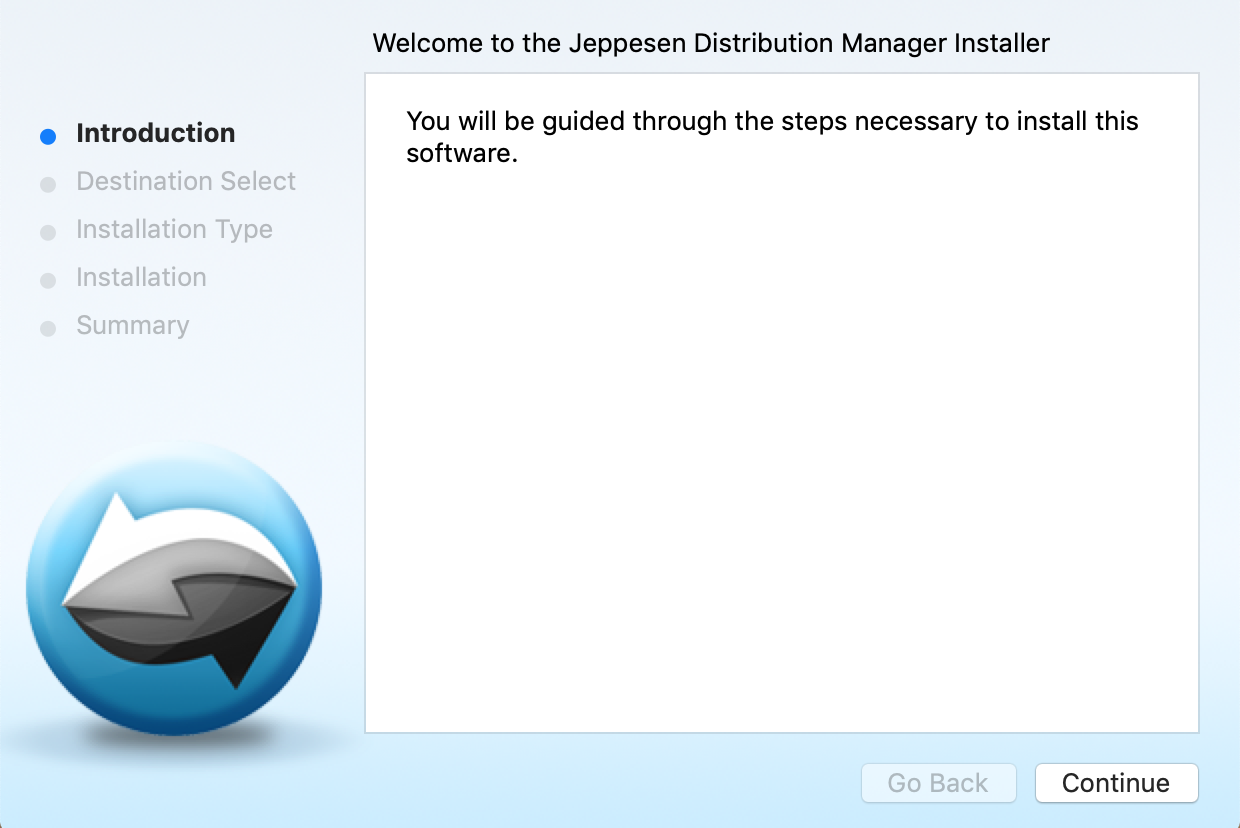
To download and install the JDM software, follow these steps:
- Click the Download JDM for Mac link and either Run the installer or Save the installer to your computer. If you saved the installer, double click the .pkg file to start the installation.
- Click Continue on the Introduction screen to proceed with the installation.
- Click Install on the Installation Type screen.
- When the administrative password popover opens, enter your Mac username and password.
- Click Close on the Summary screen.
- The installer installs the JDM application and adds the JDM icon to your Applications folder or LaunchPad depending on what version of macOS you have.
Administrative privileges are required to install this application and application updates. You must have permission to create directories in the /Applications folder and permissions to create directories in your HOME folder. In a corporate environment, the IT department can change this permission status.
Login to JDM
-
Launch the JDM shortcut from Applications or Launchpad.
-
Check the box to Save Password, if you don't want to enter your user name and password every time you open JDM.
- When prompted, enter your JDM user name and password.
Logout of JDM
-
Click on the drop down arrow next to your user name and customer number.
-
Select Logout.
-
If you prefer to exit the application but remain logged in, go to the JDM menu in the upper left corner and select Exit.
Remove JDM
A JDM uninstall application is provided as part of the standard install. The uninstaller resides along side the JDM application in the Applications folder. The uninstaller is a smart application and removes the JDM application, agent list file, package receipts, and your user data folder. All deleted items are NOT recoverable from the Trash.
-
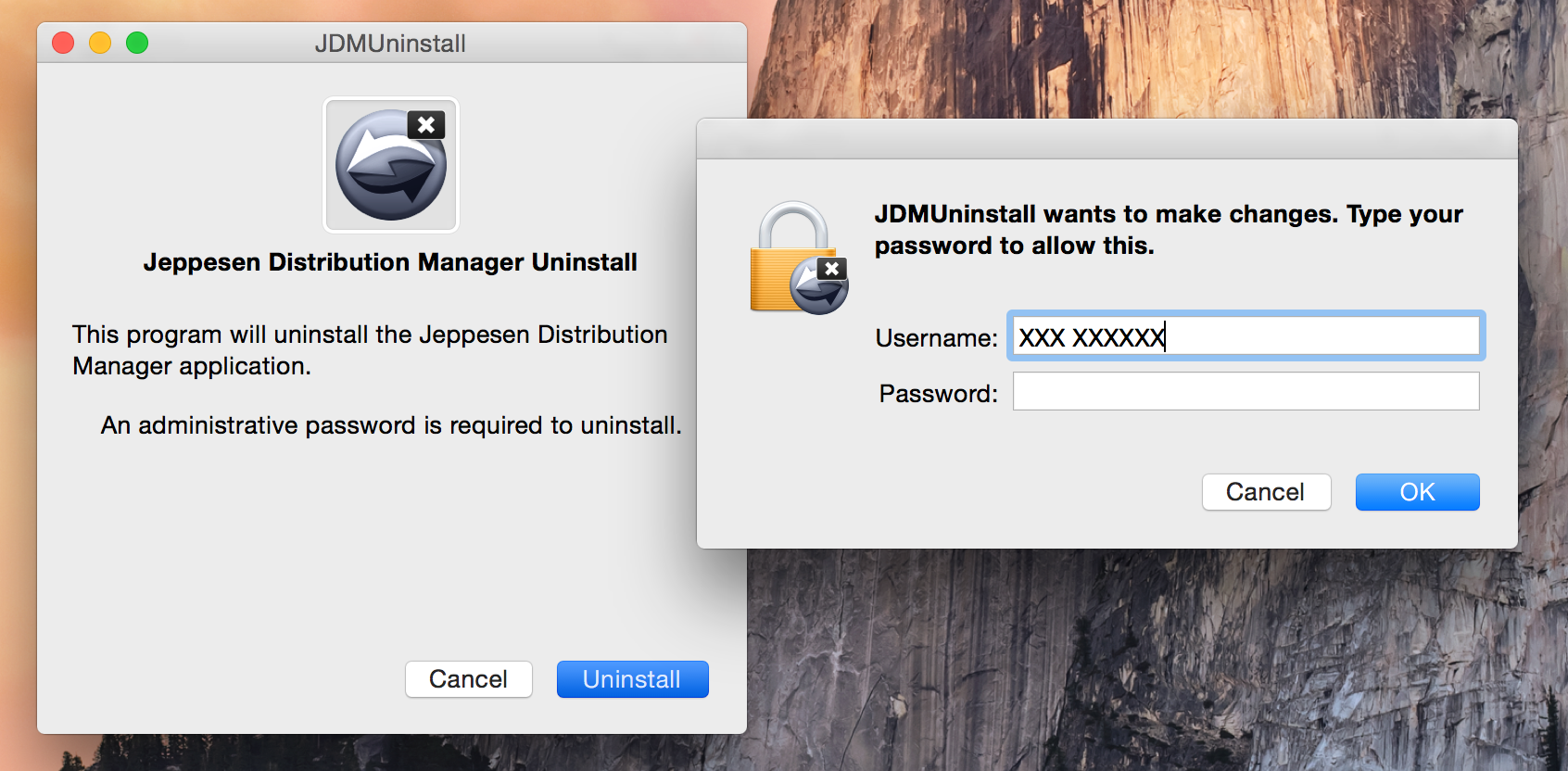
Locate the JDMUninstall in the Applications folder, LaunchPad, or Finder and double-click to run it.
-
Enter your Username and Password.
-
Click Uninstall.
-
Click Close.