
The following procedure applies to the Jeppesen Weather service. Use the Weather tab or click View > DUATS Controller to access the static weather download services.
The easiest method for downloading a weather briefing is to first create a route in FliteStar and request briefings and maps for that route. See RoutePack Wizard for more information on creating a route.
You can also download a weather briefing by manually entering your route information in the Route Weather dialog box.
Do one of the following to display the DUATS Controller:
Click the Weather tab. The view changes to the Weather window with the DUATS Controller at the bottom.
Click View > DUATS Controller. The DUATS Controller appears.
To move the DUATS Controller, click and hold an inactive part of the control panel with the mouse (try just above the Add button) and drag it anywhere in the screen to keep other information in view.
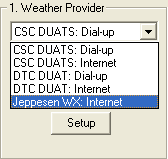
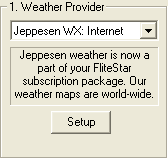
Select Jeppesen Wx:Internet from the Weather Provider drop-down menu, then click Setup. Jeppesen Weather is part of Flitetar and account infromation is no longer needed.
In the Weather Selection: Weather Types section:
Select a type of briefing to download and click Add:
Select Route Weather to obtain information pertinent to the active route displayed on the Enroute Charts View. This is an appropriate type of briefing after you have used FliteStar to plan a route, and you intend to make the flight within 6 hours.
Select Area Weather to obtain information around a particular airport.
Complete the information for the briefing type in the dialog box that appears. Make sure your tail number and aircraft codes are valid. A valid tail number must be entered to continue.
Select both weather briefing types by completing the information in one briefing and going back and selecting the other.
Add raster weather maps by selecting Jeppesen Weather Images and checking the maps you want.
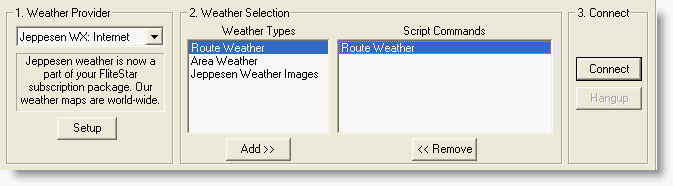
To remove an item from the Script Commands, select it and click Remove.
Click Connect download your briefing.
| NOTE | If there is an earlier briefing in the Weather text window, FliteStar asks if you want to "clear text from last briefing." If you do, the previous briefing is cleared away and stored. You can access these cleared-away briefings by clicking Weather > Import Briefing. |
FliteStar automatically disconnects after the briefing is completed. If you need to disconnect before a briefing is downloaded completely, click Hangup.
To edit the parameters for a map or briefing before connecting, double-click the name where it is listed under Script Commands in the DUATS Controller. When you are ready to get the briefing, click Connect in the DUATS Controller.
After the briefing, FliteStar displays a message, Session Complete. You can scroll back up in the terminal window and review the briefing.
All the categories within the briefing are listed on the side bar to the right. You can view the entire text by clicking Text Weather (All), or view by a specific category. Weather graphics are shown beneath the text categories in thumbnail views.
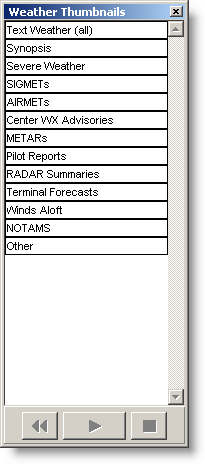
If you are viewing a category within the briefing, FliteStar will print only that category. To print the entire briefing choose Text Weather (All).
Select the text you want to print and use any of the following print options:
To view the printout before printing, click the Print Preview button on the Standard toolbar, or click File > Print Preview Text Weather.
Click File > Print > Print Text Weather.
Press CTRL+P.
Click the Print button on the Standard toolbar.
You can also copy text from the text window and paste it into any text-editing program such as Wordpad.
To view a briefing that was previously downloaded:
Click Weather > Import Briefing.
Select the briefing you want to view. FliteStar names and sorts the briefings according to the date/time you retrieved them, or you can rename them the same way you would a standard text file.
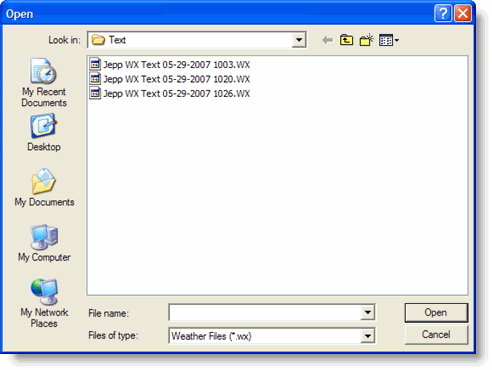
You can open the plain text files in Microsoft© Wordpad or other word processor. The files are located in one of the following directories based upon your computer setup:
[root]:\Users\[User Profile]\Jeppesen\Common\Weather\Text (Windows Vista and Windows 7)
[root]:\Jeppesen\Common\Weather\Text (Windows XP)
[root]:\Program Files\Jeppesen\Common\Weather\Text (Windows XP)
When opening a briefing file in another program, select All Files (*.*) in the Files of type drop-down menu, otherwise the program may not recognize the .WX extension as a text file.
See Also: